
Why Your WooCommerce Site Is Slow: 7 Hidden Performance Killers
Table of Contents
- Why Your WooCommerce Site Is Slow: Common Culprits
- Poor Hosting Quality and Shared Server Limitations
- WooCommerce Database Optimization: Transients and Bloat
- Unoptimized Product Images and Missing WebP Formats
- How to Speed Up WooCommerce With Caching Plugins
- Plugin Bloat and JavaScript Execution Overhead
- Payment Gateway Latency and Checkout Performance
- Mobile-First Performance and Core Web Vitals
Last Updated: July 8, 2026
Why Your WooCommerce Site Is Slow: Common Culprits
If your WooCommerce site is slow, performance issues compound over time. A poorly optimized database query, uncompressed product images, and high-latency payment gateways each seem minor in isolation, but together they create a checkout experience that frustrates customers and tanks conversion rates.
According to Google’s Web Vitals documentation, a one-second delay in page load time reduces conversion rates by approximately 7%. For a store doing $50,000 in monthly sales, that translates to $3,500 in lost revenue per month from a single-second slowdown.
Most store owners treat performance as a one-time fix: install a caching plugin, compress a few images, and move on. But WooCommerce performance is a system. Hosting quality, database structure, plugin bloat, image optimization, caching strategy, and payment gateway integration all affect your TTFB (Time to First Byte) and Core Web Vitals scores.
Below are seven hidden performance killers most guides miss, specific, actionable fixes targeting the actual bottlenecks slowing real WooCommerce stores.
How Performance Bottlenecks Impact Your Bottom Line
When your WooCommerce site is slow, three outcomes follow: abandoned carts increase, mobile traffic drops, and search rankings suffer. Checkout latency is the most expensive type of slowness. A 4-second checkout page instead of 2 seconds converts ready-to-buy customers into abandoned orders.
Mobile-first performance matters because 65% of e-commerce traffic comes from mobile devices. A page loading in 2 seconds on desktop might take 5 seconds on 4G. That’s the difference between a completed purchase and a closed browser tab.
A 2-second checkout delay can increase cart abandonment by 40% or more when payment gateway latency combines with unoptimized JavaScript execution.
Poor Hosting Quality and Shared Server Limitations
Most WooCommerce stores run on shared hosting. The problem isn’t capacity, it’s isolation. Your site shares server resources with potentially hundreds of other websites. When one site gets traffic spikes, your TTFB suffers.
Shared hosting creates a performance ceiling no optimization can overcome. The hosting stack matters more than most realize. WooCommerce runs on PHP, and performance varies dramatically by version. PHP 8.1 or 8.2 is 20-30% faster than PHP 7.4. If your host still runs older versions, you’re leaving significant performance on the table.
TTFB and Server Response Time
TTFB (Time to First Byte) is the time between when a browser requests a page and when the server sends the first byte of response. A TTFB under 600ms is good; above 1,000ms indicates a slow site.
On shared hosting, TTFB is often 1,200-2,000ms because the server handles multiple sites simultaneously. Dedicated or managed WordPress hosting reduces TTFB to 200-400ms with guaranteed resources. This cascades through every other metric: Largest Contentful Paint improves, Cumulative Layout Shift decreases, and overall page load time drops 30-50%.
Best WooCommerce Hosting: What to Look For
When evaluating WooCommerce hosting, focus on three specifications: PHP version (8.1 or higher), server-level caching (Redis or Memcached), and guaranteed resource allocation.
Managed WooCommerce hosts like Kinsta, WP Engine, and Cloudways offer server-level caching out of the box. This intercepts requests at the server level before they hit your PHP application, faster and more reliable than plugin-level caching.
Request a TTFB benchmark from potential hosts before signing up. A $50/month host with 400ms TTFB outperforms a $15/month host with 1,500ms TTFB in real revenue gains.
WooCommerce Database Optimization: Transients and Bloat
Your WooCommerce database is probably bloated with expired transients, autoloaded options, and orphaned metadata. Each query your site runs must sift through this waste, making database queries one of the top three performance bottlenecks.
After six months of normal operation, a typical WooCommerce store accumulates 5,000-15,000 expired transients. WordPress doesn’t automatically delete expired transients, they accumulate invisibly until page load times creep up and CPU usage spikes.
Cleaning Up Expired Transients and Autoloaded Options
Transients are temporary cached data with expiration times, but WordPress doesn’t delete expired ones automatically. Autoloaded options are even worse, WordPress loads them into memory every single page load. Most store owners never clean them up.
Use Query Monitor (a free WordPress plugin) to audit your database. It shows exactly which queries run, how long they take, and which ones are autoloaded. Most stores discover 30-50% of their database is autoloaded options that could be deleted or marked non-autoloaded.
Delete expired transients, audit autoloaded options, and remove non-essentials. This alone reduces database query time by 15-25%.
Query Monitor and Database Query Analysis
Query Monitor logs every database query, PHP error, and HTTP request. Most store owners are shocked to discover a product page running 200+ database queries or a checkout page with 50+ queries that could be cached or eliminated.
Unoptimized Product Images and Missing WebP Formats
Product images are usually the largest files on a WooCommerce page. A single unoptimized photo can be 2-4MB; a gallery of 6 images can be 12-24MB. Most stores don’t optimize images at all, serving high-resolution files from cameras directly to every visitor.
WebP format reduces file size by 25-35% compared to JPEG while maintaining visual quality, yet most WooCommerce stores still serve JPEG exclusively.
Image Compression and Lazy Loading Strategies
Image optimization has two components: compression and lazy loading. Use tools like Imagify or ShortPixel to automatically compress product images and convert them to WebP format.
Lazy loading delays image loading until users scroll to them. When enabled, images below the fold don’t load until needed, dramatically reducing initial page load time.
The combination of WebP conversion and lazy loading typically reduces product page load time by 20-30%.
Serve images in WebP format with lazy loading enabled. This single change reduces image file sizes by 25-35% and improves page load time by 15-25% on average.
How to Speed Up WooCommerce With Caching Plugins
Caching is the most effective performance optimization available. There are three types: page caching (static HTML copies), object caching (database query results in memory), and browser caching.
WooCommerce Caching Plugins: Object and Server-Level Caching
Page caching stores static HTML copies. When visitors request a page, the server delivers cached HTML instead of running PHP and querying the database.
Object caching stores database query results in memory using Redis or Memcached. Memory access is thousands of times faster than database queries.
Server-level caching (Redis or Memcached) is superior to plugin-level caching because it operates at the infrastructure level, though it requires hosting support. Managed WooCommerce hosts include this by default.
Popular caching plugins include WP-Rocket, LiteSpeed Cache, and Cloudflare. WP-Rocket is easiest to configure and works on any hosting. The challenge is invalidation, when inventory changes, cached pages become stale. Good caching plugins automatically invalidate the cache when WooCommerce data changes.
Critical CSS and Render-Blocking Resources
Render-blocking resources (JavaScript and CSS) prevent the browser from displaying the page until fully loaded. If your page has 200KB of render-blocking CSS, the browser waits 400ms just to start rendering.
Critical CSS is the CSS required for above-the-fold content. By inlining critical CSS and deferring the rest, you dramatically improve Largest Contentful Paint (LCP).
Tools like Autoptimize and WP-Rocket can extract and inline critical CSS automatically, improving LCP by 20-40%.
Plugin Bloat and JavaScript Execution Overhead
Every plugin adds code to your site. A typical WooCommerce store runs 15-25 plugins, each adding JavaScript files the browser must download, parse, and execute. By the time all JavaScript finishes, 2-3 seconds have passed, your entire performance budget.
Auditing and Removing Unnecessary Plugins
List every active plugin and ask: "Do I actually need this?" Deactivating unused plugins immediately improves performance.
Next, identify plugins loading on every page. Some are necessary; others only need to load on specific pages. Deferring plugin loading reduces initial page load time.
Audit which plugins load JavaScript using browser DevTools Network tab. Consider replacing multiple plugins with single, more efficient alternatives.
Each plugin you remove reduces JavaScript execution time by 5-15% on average. Removing just 5 unnecessary plugins can improve page load time by 0.5-1 second.
Payment Gateway Latency and Checkout Performance
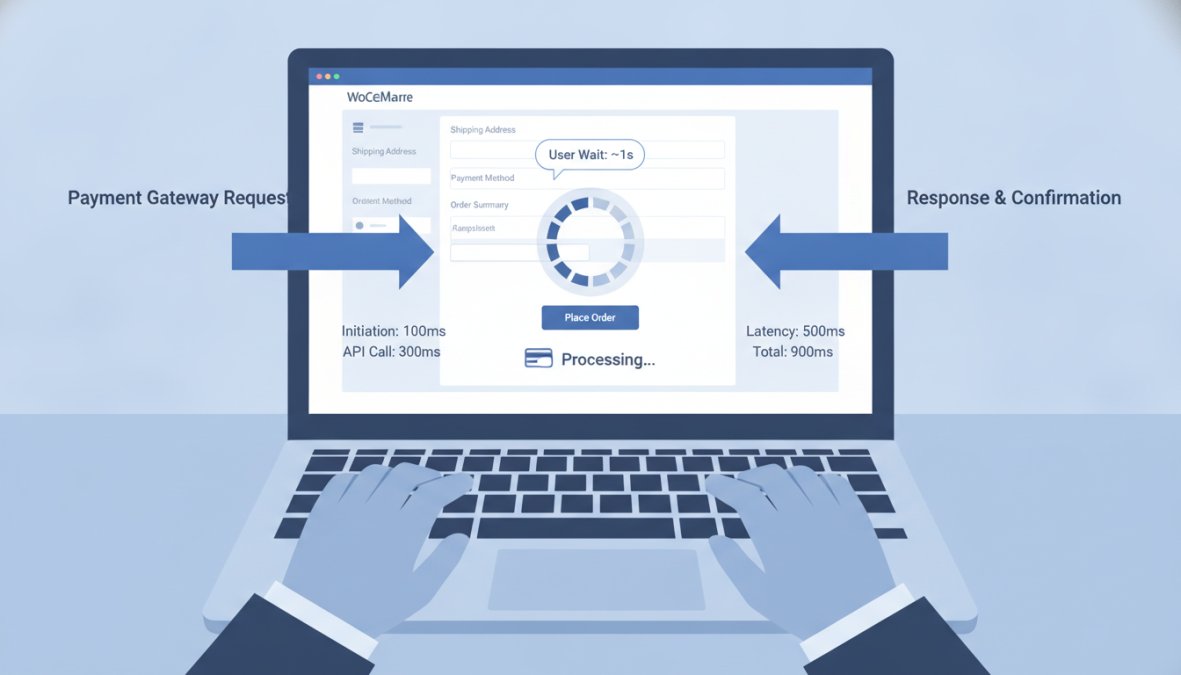
Payment gateway latency is the time your site takes to communicate with the payment processor (Stripe, PayPal, etc.). This happens on the checkout page and is outside your control.
When customers click "Place Order," your site sends payment information to the gateway. If the gateway is slow, the checkout page hangs. Stripe typically responds in 200-400ms; PayPal can take 600-1,200ms. Add network latency on 4G connections, and delays compound.
Monitoring Checkout Page Load Times
The checkout page is your most important page for performance and the hardest to optimize, you can’t cache it since every customer has different cart contents and pricing.
Use DebugBear or similar tools to monitor checkout page load time continuously. Set alerts for when it exceeds 3 seconds. Most checkout slowdowns fall into three categories: database queries (inventory checks, pricing), JavaScript execution (form validation), or payment gateway latency.
Use Query Monitor to check database query count and time, then use browser DevTools to check JavaScript execution time. If both are reasonable but checkout is still slow, the problem is likely gateway latency.
Mobile-First Performance and Core Web Vitals
Google’s Core Web Vitals are now a ranking factor, measuring Largest Contentful Paint (LCP), First Input Delay (FID), and Cumulative Layout Shift (CLS). Mobile users are more sensitive to performance issues than desktop users. A page feeling fast on desktop might feel sluggish on 4G.
Mobile devices have less CPU power, less memory, and slower connections than desktops. A 2MB JavaScript bundle snappy on desktop can take 5+ seconds to execute on mobile.
Testing Beyond PageSpeed Insights
PageSpeed Insights tests under ideal conditions. Use WebPageTest or Lighthouse to test under throttled network conditions (3G, 4G) to see real-world performance.
Real User Monitoring (RUM) tools like Sentry or New Relic show actual performance data from real visitors, often 30-50% different from synthetic testing data.
The most important metric for WooCommerce stores is "Time to Interactive" (TTI) on mobile. If TTI exceeds 5 seconds, you’re losing mobile customers.
| Performance Metric | Good | Acceptable | Poor |
|---|---|---|---|
| TTFB | Under 600ms | 600-1000ms | Over 1000ms |
| LCP | Under 2.5s | 2.5-4s | Over 4s |
| FID | Under 100ms | 100-300ms | Over 300ms |
| CLS | Under 0.1 | 0.1-0.25 | Over 0.25 |
| Mobile TTI | Under 3.5s | 3.5-5s | Over 5s |
Slow WooCommerce performance isn’t inevitable, it results from specific, fixable problems. The best-performing stores understand their bottlenecks and address them systematically.
At Web Maniacs, we help e-commerce teams identify and fix performance killers slowing their sites. Our team analyzes hosting stack, database structure, caching configuration, and payment gateway integration to find where you’re losing milliseconds, then implements targeted fixes that improve TTFB, reduce JavaScript execution time, and optimize checkout experience. If your WooCommerce store is losing customers to slow performance, Web Maniacs performance optimization services can help you recover that lost revenue.
Frequently Asked Questions
What is a good page load time for WooCommerce?
Most e-commerce sites should aim for a TTFB under 600ms and a full page load under 3 seconds. However, why your WooCommerce site is slow often depends on your specific hosting and configuration. Core Web Vitals, including Largest Contentful Paint (LCP) under 2.5 seconds, are critical for both user experience and search rankings. Use DebugBear or similar tools to monitor actual performance metrics beyond basic PageSpeed Insights scores.
How can I optimize WooCommerce for better speed using caching plugins?
WooCommerce caching plugins like WP-Rocket enable object caching, server-level caching, and minification of CSS and JavaScript. Start by enabling page caching for static content, then implement object caching to reduce database queries. Use critical CSS to defer non-essential stylesheets, and enable Gzip compression. Most caching plugins integrate with CDN services to further reduce latency. Test with Query Monitor to see how many database queries each page generates before and after optimization.
Does WooCommerce database optimization really impact site speed?
Yes, significantly. WooCommerce database optimization removes expired transients, cleans up autoloaded options, and deletes unnecessary log entries. Over time, these accumulate and slow down every database query. Use Query Monitor to identify slow queries, then audit your WooCommerce logs and transients table. Many stores see 20-40% speed improvements after removing bloat. Regular cleanup prevents performance degradation from recurring.
Why is my WooCommerce checkout page so slow?
Checkout slowness often stems from payment gateway latency, excessive plugins running on the checkout page, or render-blocking JavaScript. Disable non-essential plugins on checkout pages, enable lazy loading for images, and test payment gateway response times separately. Minify JavaScript and CSS to reduce execution time. Use DebugBear or similar tools to identify whether the delay is client-side (your site) or external (payment processor). Mobile-first testing is critical, as checkout latency disproportionately affects mobile conversions.
This article was written using GrandRanker