
How to Manage Duplicate Google Business Listings
Table of Contents
- Understanding Duplicate Google Business Profiles
- Step 1: Access Your Business Profile Dashboard
- Step 2: Identify Duplicate Locations in Google Maps
- Step 3: Merge or Remove Duplicate Business Profiles
- How to Report a Duplicate Business on Google
- Impact of Duplicate Listings on Local SEO
- Handling Duplicates When You Don’t Own the Listing
- Common Mistakes to Avoid When Managing Duplicates
Last Updated: July 3, 2026
Managing duplicate Google Business listings fragments your search presence. Instead of all your reviews, ratings, and customer interactions flowing into one verified profile, they scatter across multiple profiles, lowering visibility in local search and confusing customers. This guide covers how to identify hidden duplicates, merge profiles, and prevent them from returning.
Understanding Duplicate Google Business Profiles
Duplicate listings happen when multiple people at your organization create profiles without realizing one exists, when you’ve moved locations and the old address remains live, or when customers create profiles on your behalf. According to Google’s Business Profile Help Center, improper management of business locations is one of the top reasons for duplicate profiles appearing in search results.
NAP consistency, when your Name, Address, and Phone number don’t match across profiles, compounds the problem. Google’s algorithm uses NAP consistency to verify which listings belong to the same business. When your information varies between profiles, Google treats them as separate entities.
Each duplicate listing you leave unmanaged actively harms your local SEO. Search results become fragmented, customer reviews split across multiple profiles, and your overall visibility drops.
Step 1: Access Your Business Profile Dashboard
Start by going to Google Business Profile directly or by searching your business name in Google Maps. If you own the business, click "Own this business?" and complete verification, usually via postcard, phone, or email. Once verified, you’ll access your account summary, your control center for managing all aspects of your listing.
Log in using the Google account associated with your business. The account summary page displays your key metrics and any alerts about duplicate or inactive profiles. If you have multiple locations, the dashboard lets you manage each one separately from a single account, preventing accidental duplication.
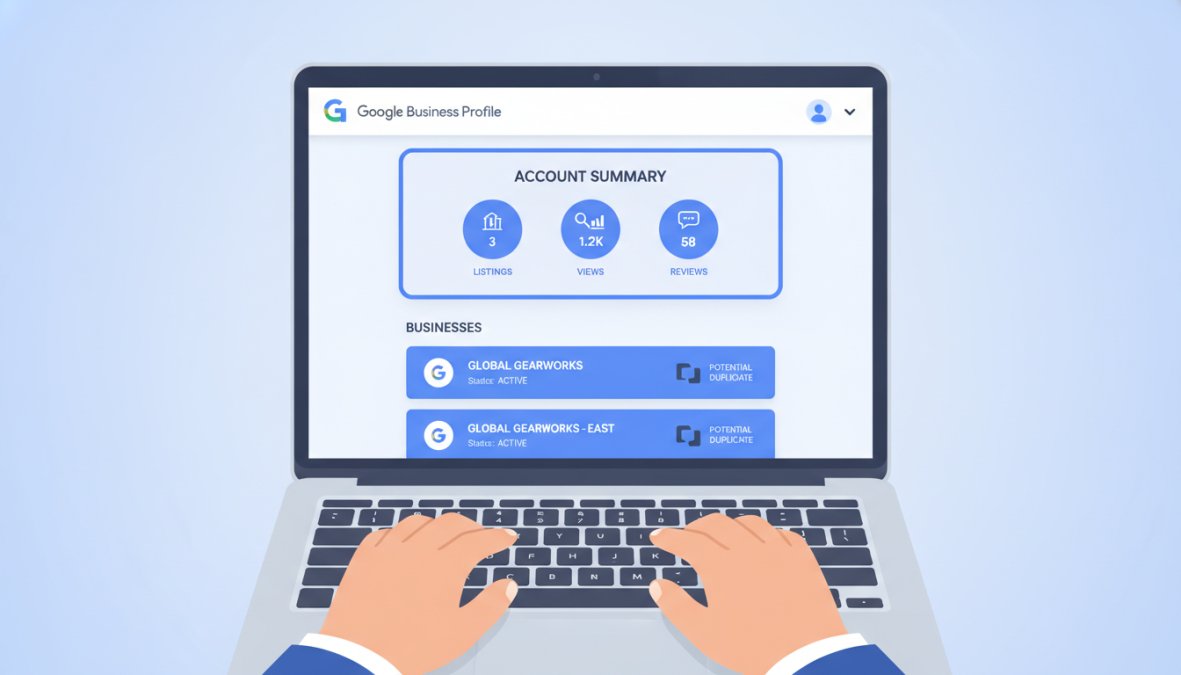
Set up a single Google account for managing all your business profiles, even if you have multiple locations. Assign appropriate access levels to staff to prevent team members from accidentally creating duplicates.
Step 2: Identify Duplicate Locations in Google Maps
Finding duplicates requires both automated detection and manual searching. Start with Google’s built-in duplicate locations tool in your Business Profile dashboard. Navigate to the "Locations" section and look for alerts about duplicate profiles. Google’s system uses address matching and phone number verification to identify likely duplicates.
However, Google’s automated detection isn’t foolproof. Manually search for your business in Google Maps and Google Search using your business name, your business name plus your city, and variations of your business name. Look through the results carefully for multiple listings you don’t recognize.
Audit all your listings to ensure perfect NAP consistency. Your Name, Address, and Phone number should be identical across all verified profiles. Even a missing suite number or different phone extension can create problems and cause Google to treat listings as separate businesses.
The most effective duplicate detection combines Google’s automated flagging with manual searches. Don’t rely on Google’s system alone; actively search for your business name and look for profiles you don’t recognize or control.
Step 3: Merge or Remove Duplicate Business Profiles
Once you’ve identified duplicates, you have two main options: merge them into one verified listing or remove the duplicate profile entirely.
Merging duplicate profiles is the preferred approach when you own both profiles or have access to both. When you merge, Google combines all information, reviews, photos, posts, and customer interactions into a single primary listing. To merge profiles, go to your Business Profile dashboard, find the duplicate location, and select the merge option. Choose the profile with the most complete information and highest review count as your primary listing. The merge process typically takes a few days, and reviews from the merged profile appear on your primary listing.
Removing a duplicate profile entirely is necessary when you don’t own or control the duplicate. You can suggest edits to flag incorrect information, or file a redressal complaint form with Google if the profile violates their policies. The removal process takes 2-4 weeks because Google manually reviews your request. Document everything: take screenshots of both profiles showing they’re duplicates, note the address and phone number, and provide this evidence to Google’s support team.
Don’t attempt to “claim” a duplicate profile you don’t own by changing its information. This violates Google’s policies and can result in your own profile being suspended. Always use official channels: the merge tool or the redressal complaint form.
How to Report a Duplicate Business on Google
Start by finding the duplicate profile in Google Maps or Google Search. Click on the profile and look for a "Suggest an edit" option. Select the option to report the listing as a duplicate, explain clearly that this is a duplicate of another profile, and provide the URL or business name of your primary profile.
If suggesting an edit doesn’t work within 2-3 weeks, escalate using Google’s redressal complaint form. Access it through your Business Profile dashboard or Google’s help center. Select "Duplicate or fraudulent business profile" as the issue type and provide detailed information: your business name, address, phone number, the URL of the duplicate profile, and a clear explanation of why it’s a duplicate.
Include supporting documentation in your complaint. Screenshots showing both profiles and side-by-side comparisons make your case stronger. Google’s support team typically responds within a week with a decision.
When filing a complaint, be specific: “This profile shows my business name and phone number but at an address where I’ve never operated. My verified profile is [URL]. This duplicate has false reviews.”
Impact of Duplicate Listings on Local SEO
Duplicate listings directly harm your local search rankings. When your business information scatters across multiple profiles, Google’s algorithm can’t consolidate your signals. Your reviews, ratings, and customer interactions split between profiles instead of accumulating in one place. Research from Search Engine Journal’s local SEO guide demonstrates that consolidated, verified business profiles rank significantly higher than fragmented duplicates.
Your review aggregation suffers when duplicates exist. If you have 50 reviews on your primary profile and 20 on a duplicate, potential customers seeing the duplicate think you’re less established. Consolidating those 70 reviews into one profile dramatically improves your perceived credibility.
After merging or removing duplicates, monitor your Business Profile dashboard for changes in visibility metrics. You should see an increase in customer actions, clicks to call, directions requests, and website visits within 2-4 weeks. Your local search rankings typically improve within 30-60 days as the algorithm recalculates your local relevance score with consolidated data.
Handling Duplicates When You Don’t Own the Listing
Your first step is attempting to claim the duplicate profile. Go to the profile in Google Maps, click "Own this business?" and follow the verification process. If you can verify ownership via postcard, phone, or email, you’ll gain access and can merge or delete the profile.
If you can’t claim the profile because someone else already owns it, contact Google Business Support through the Business Profile help center. Explain that you’re the legitimate business owner, someone else created a duplicate profile, and you need Google to remove it or transfer ownership. Provide business documentation like articles of incorporation, business licenses, or tax ID numbers to prove ownership. Google reaches out to the profile owner to verify they have the right to manage that listing. If they don’t respond or can’t prove ownership, Google removes the profile within 1-2 weeks.
If a competitor has created a fake profile using your business name to post false reviews or misleading information, file a complaint immediately through the redressal form with evidence of fraudulent activity. Google prioritizes fraud cases and typically removes them within days.
If a competitor has created a fake profile using your business name to post false reviews, this is fraud. File a complaint immediately through the redressal form and include evidence. Google prioritizes fraud cases and typically removes them within days.
Common Mistakes to Avoid When Managing Duplicates
The biggest mistake is ignoring duplicates and hoping they’ll disappear. They won’t. Take action the moment you discover a duplicate.
Don’t attempt to claim multiple profiles as your primary listing. Google only allows one primary profile per business address. Trying to claim multiple profiles at the same address will flag them as duplicates and may suspend your account.
Inconsistent NAP information across profiles prevents proper merging. Before addressing duplicates, audit all listings and ensure your Name, Address, and Phone number match exactly.
Don’t delete duplicate profiles without considering whether they contain valuable reviews. If a duplicate has customer reviews, merging is better than deletion. When you merge, those reviews transfer to your primary profile.
Finally, don’t stop monitoring after cleanup. Set a reminder to search for your business in Google Maps monthly. New duplicates can appear if employees or customers create profiles without realizing one exists.
The three most critical actions: (1) Verify ownership of your primary profile immediately, (2) Audit NAP consistency across all existing profiles, (3) Merge duplicates rather than delete them to preserve reviews and ratings.
Duplicate Google Business listings are manageable with the right approach. The process, from identifying duplicates to merging or removing them, takes a few hours of focused work. Web Maniacs helps businesses simplify this process through comprehensive Google Local Optimization services that include duplicate profile audits, NAP consistency verification, and ongoing profile management. Get started with Web Maniacs and reclaim your complete local search presence.
Frequently Asked Questions
Why do I have duplicate Google Business listings?
Duplicate listings occur when multiple profiles are created for the same business location. Common causes include team members creating separate profiles, automatic imports from directories, location management errors, or changes to your business name or address. Each duplicate profile competes for visibility in search results and Google Maps, diluting your online presence and confusing potential customers about which listing is authentic.
How do I merge two Google Business profiles?
To merge duplicate profiles, access your Business Profile dashboard and use the duplicate locations tool. Identify the primary profile you want to keep, then select the duplicate. Google will guide you through merging the verified listings, consolidating reviews, and updating business settings. The merged profile retains the history of both locations. If you cannot merge directly, contact Google Business Support for assistance with ownership verification.
What is the impact of duplicate listings on local SEO?
Duplicate listings fragment your search visibility across multiple profiles, causing Google to distribute your reviews, ratings, and ranking signals unevenly. This weakens your overall local SEO performance and reduces the likelihood of ranking prominently in Google Maps and local search results. Removing duplicates consolidates your authority, improves NAP consistency, and helps you rank higher. Post-removal, verify your listing status and monitor search results for ranking recovery over 1-2 weeks.
How long does it take to remove a duplicate Google Business listing?
Removing a duplicate listing through the suggest an edit option typically takes 1-3 business days for Google to process. If you own both profiles, merging them is faster, usually completed within 24 hours. For unverified duplicates or those you don't own, filing a redressal complaint form may take 5-7 business days. Always verify the removal by checking Google Maps and search results after the processing period to confirm the duplicate is gone.
This article was written using GrandRanker