How to Add Service Areas to Google Maps: Step-by-Step
Table of Contents
- What You’ll Need Before Adding Service Areas
- Step 1: Access Your Business Profile Dashboard
- Step 2: Navigate to Location Settings and Edit Profile
- Step 3: How to Add Service Areas to Google Maps
- Google Business Profile Service Area Limits
- How to Hide Business Address on Google Maps
- Google Business Profile Local SEO Best Practices
- Common Mistakes That Lead to Profile Suspension
What You’ll Need Before Adding Service Areas
A Service Area Business (SAB) is a Google Business Profile for companies that serve customers at their locations rather than operating from a fixed storefront. Plumbers, electricians, cleaning services, and contractors are classic examples. This distinction changes how you configure your profile and how customers discover you on Google Maps.
The setup process takes approximately 15-20 minutes if you’re organized. Most delays happen because business owners don’t know what information they need upfront or misunderstand the difference between service-area and storefront profiles.
Access to Your Google Business Profile
You need owner or manager access to your Google Business Profile. Sign in at business.google.com and verify that your business is verified, unverified profiles cannot add service areas. Check your user role to confirm you have the appropriate permissions to edit location settings.
If you manage multiple business locations, you can add different service areas to each location profile. This is crucial for multi-location service area strategies.
Understanding Service Area Businesses (SABs)
A Service Area Business differs fundamentally from a storefront business. With a storefront, your address appears on Google Maps and customers can visit your physical location. With a Service Area Business, your address is hidden and you define geographic areas where you serve customers.
Service Area Businesses can add up to 20 service areas maximum. You can define these areas by zip codes, cities, or custom geographic boundaries using polygons. Most businesses use a combination of these methods to cover their service territory precisely.
Some businesses operate both a storefront location and serve customers in surrounding areas. Google allows you to toggle between "service area only" and "storefront with service areas," but you cannot have both active simultaneously for the same profile.
Step 1: Access Your Business Profile Dashboard
Log into your Google Business Profile at business.google.com using the email address associated with your business account. If you manage multiple locations, select the specific location where you want to add service areas.
Look for the "Info" tab on the left sidebar. This section contains all your business information, including address, phone number, website, and business category. This is also where you’ll find the location settings that control whether your profile is configured as a storefront or service area business.
Do not confuse the “Info” tab with the “Posts” or “Reviews” tabs. The Info tab is the only place where you can configure service areas.
Step 2: Navigate to Location Settings and Edit Profile
In the Info tab, scroll down until you see "Location" or "Business Type" settings. Click "Edit Profile" or the pencil icon next to your business address.
A panel will open showing your current business configuration. Near the bottom, you’ll find the critical setting: "This is a storefront" or "This is a service area business." If your profile currently shows "This is a storefront," select "This is a service area business" depending on your business model.
After making this selection, save your changes. Google may take a few minutes to process the change. Refresh the page after saving to confirm the change has been applied.
Step 3: How to Add Service Areas to Google Maps
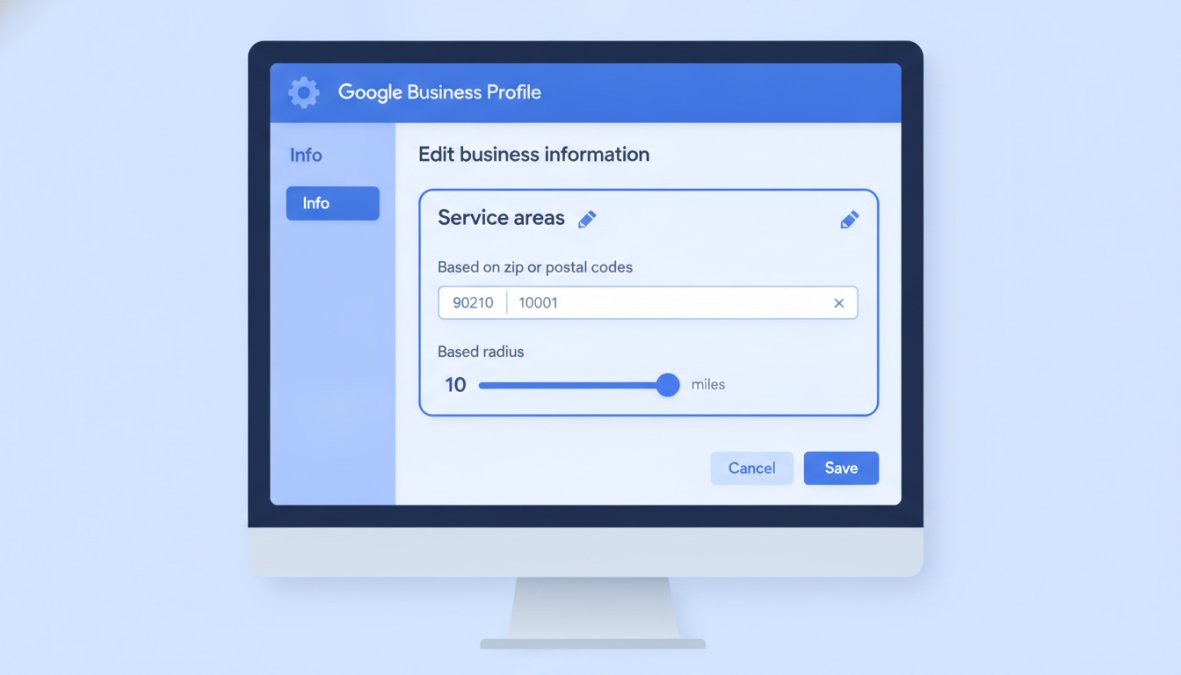
Once your profile is configured as a Service Area Business, the service area section becomes available. Return to the Info tab and look for "Service Areas." Click "Add Service Areas" or the plus icon next to Service Areas. Google will present three methods to define your coverage area.
Adding Service Areas by Zip Code or City
The zip code method is the fastest way to add service areas. Click "Add by Zip Code" and enter the postal codes where you serve customers. You can add multiple zip codes at once by entering them separated by commas.
The city method works similarly. Click "Add by City" and type the city names where you operate. This is useful for regional service providers who cover entire cities or counties.
One limitation: zip codes and cities don’t always align perfectly with your actual service area. If you serve part of a zip code but not all of it, the zip code method shows the entire postal code as your service area. For precise coverage, use the polygon method.
Setting a Service Radius Around Your Location
The radius method creates a circle around your business address. Enter a distance in miles or kilometers, and Google will display a circular service area on the map centered at your business location.
This method works best for businesses with consistent service distances. A plumbing company that travels up to 15 miles from their office can set a 15-mile radius. Google displays the radius visually on a map preview as you adjust it.
The radius method has one drawback: it doesn’t account for geographic obstacles or service boundaries. A 10-mile radius might extend into areas you don’t actually serve. For more control, use polygons.
Defining Custom Geographic Boundaries with Polygons
Polygons allow you to draw custom boundaries around your exact service area. Click "Add Service Area" and select the polygon option. Google Maps will open, and you can click points on the map to create a boundary. Each click adds a vertex to your polygon.
This method gives you complete control over your service area visualization. You can exclude neighborhoods you don’t serve and include specific regions. Drawing polygons requires 5-10 minutes per polygon depending on complexity, but the precision is worth it for businesses with irregular service territories.
Most successful businesses use a combination of all three methods. They might set a base radius of 10 miles, add 3-4 specific zip codes for high-priority areas, and use a polygon to exclude neighborhoods they don’t serve.
Google Business Profile Service Area Limits
Google enforces strict limits on service areas to prevent abuse and maintain the quality of local search results.
The 20 Service Area Maximum
You can add up to 20 service areas per Google Business Profile, regardless of whether you’re using zip codes, cities, radius, or polygon methods. If you manage multiple locations, each location has its own 20-area limit.
This limit protects your profile from suspension. Google’s systems flag profiles with excessive or overlapping service areas as potentially fraudulent. Staying within the limit and ensuring clean, non-overlapping boundaries keeps your profile in good standing.
Storefront vs. Service-Area Businesses: Key Differences
A storefront business displays a physical address on Google Maps. Customers can see your location, get directions, and visit your business in person. Local SEO rankings consider proximity to the searcher.
A Service Area Business hides your address from public view. Instead of proximity, Google’s algorithm considers your service area coverage and customer reviews. A service area business with strong reviews covering a 20-mile radius may rank higher than a storefront 5 miles away with fewer reviews.
If your business operates from a storefront but also serves customers at their locations, you must decide which model to emphasize. Most hybrid businesses choose the service area model because customers searching for services in their own neighborhood are more likely to hire you if you serve their area.
Switching between storefront and service area models after your profile is established can temporarily impact your local SEO rankings. Plan this change during a slower business period and monitor your rankings for 2-3 weeks after the switch.
How to Hide Business Address on Google Maps
If you’ve configured your profile as a Service Area Business, your address is already hidden from public view on Google Maps. Customers searching for your services won’t see your street address in the search results or on your listing.
If you operate a storefront and want to hide your address, the only way is to convert to a Service Area Business model. This requires removing your business address from the profile and defining service areas instead. You’ll lose some local SEO benefits associated with storefront proximity, but your address will be hidden.
Protecting your business address makes sense for security reasons. If you operate from home or manage a small office, hiding your address prevents unwanted visitors and protects your team.
Google Business Profile Local SEO Best Practices
Adding service areas to Google Maps is just the beginning. Your local SEO success depends on how well you optimize your entire profile and maintain consistency across your online presence.
Impact of Service Areas on Local SEO Rankings
Service area configuration directly influences your local search rankings. Geographic coverage is a significant ranking factor for service-area businesses. A wider, well-defined service area improves your visibility for searches across your coverage region.
However, broader isn’t always better. Overstating your service area by adding zip codes where you rarely serve customers can hurt your rankings. Google’s algorithm detects patterns in customer locations and reviews. If you claim to serve a zip code but have no customers there, Google recognizes the inconsistency and may penalize your rankings.
The optimal strategy is to define service areas that match your actual customer base. If 80% of your customers come from 10 specific zip codes, focus your service areas there. Add adjacent zip codes where you’re willing to serve, but avoid claiming territory you don’t actually cover.
Visualizing Service Areas for Better Customer Discovery
Customers see your service area on Google Maps when they search for your services. A clearly defined, visually accurate service area increases customer confidence that you serve their location.
Use the polygon method for high-visibility areas. If you serve a major city or region, a custom polygon shows customers exactly where you operate. Keep your service area map updated as your business expands or contracts.
Managing Multi-Location Service Area Strategies
Businesses with multiple locations need a coordinated service area strategy. Each location should have a defined territory that doesn’t overlap with other branches.
Create a service area map for your entire company. Identify which location serves which geographic area. This prevents customer confusion when multiple locations claim to serve the same neighborhood. Update service areas consistently across all locations.
Common Mistakes That Lead to Profile Suspension
Google suspends profiles that violate its policies. The most frequent mistake is overstating service areas. Adding zip codes where you rarely or never serve customers triggers Google’s fraud detection.
Another common error is using a fake or inaccurate address. If you operate from home, convert to a Service Area Business and hide your address legitimately.
Inconsistent business information causes suspensions. Your business name, phone number, and address must match across Google Business Profile, your website, and other directories.
Fake reviews and ratings manipulations are automatic suspension triggers. Never pay for positive reviews or ask customers to leave reviews in exchange for discounts.
The safest approach is honesty. Define service areas that match your actual customer base. Use accurate business information. Encourage genuine customer reviews. Maintain consistency across all online platforms.
Managing service areas on Google Maps requires precision and ongoing attention. Treat your Google Business Profile as a living document and review your service areas quarterly. Monitor your customer locations to ensure your coverage matches reality. Start with a free audit of your current profile configuration to discover where you’re losing potential customers.
Frequently Asked Questions
Can I add multiple service areas to my Google Business Profile?
Yes. Google Business Profile allows you to add up to 20 service areas. You can define these as specific zip codes, cities, or custom geographic boundaries using polygons. This is especially useful for service-area businesses that don't have a physical storefront. Multiple service areas help you reach customers across different regions and improve your visibility in local search results.
What is the difference between a storefront business and a service-area business?
A storefront business has a physical location where customers visit in person, and the business address appears on Google Maps. A service-area business (SAB) serves customers at their locations rather than at a fixed storefront. Service-area businesses can hide their business address and instead define geographic service areas. You can also run a hybrid business profile that combines both a storefront location and service areas for expanded reach.
How does adding service areas impact my local SEO rankings?
Adding service areas to your Google Business Profile can significantly improve your local SEO rankings. By clearly defining your service boundaries, you signal to Google where you actively serve customers, which helps your profile appear in local search results and Google Maps within those areas. Proper service area configuration, combined with NAP consistency and relevant business categories, strengthens your search visibility and helps you attract qualified customers in your target regions.
What happens if I exceed the service area limit or add incorrect boundaries?
Google Business Profile limits you to 20 service areas. If you add inaccurate or misleading service areas, your profile may be suspended or have reduced visibility. Always ensure your service areas match your actual service delivery capabilities and maintain consistency across your business listings. Verify your coordinates and geographic boundaries are accurate before publishing, and regularly audit your profile to prevent suspension issues.
This article was written using GrandRanker